Showing posts with label i'm feeling lucky. Show all posts

Sunday, November 23, 2008

Enable Location Bar Keyword Surfing For Flock 2

Social web browser Flock 2 comes with many improvements and changes. But it doesn't let you browse the web with keywords as Firefox does.

I have created a plug 'n play extension to fix the problem in seconds. No technical detail no dirty code. Just install it, restart your browser and continue your fun.


Compatible with Firefox, too.

How it works

When you type a keyword (e.g. Digg) in location bar and press Enter, Flock 2 will redirect you to a Yahoo search page related to that keyword.

Your keywords are redirected to a related Yahoo search page on Flock 2

After you install the extension the keyword browsing is activated and keywords that you type in address bar will direct you to the site that your keywords describe best.

After you install the extension keyword browsing is activated on Flock 2 and from now on keywords typed in location bar will direct you the site that your keywords describe best.

You can use multiple keywords at a time that create a logical unit, too. Type wikipedia heart in address bar and you will land on the Heart article of Wikipedia in seconds.

Hope it helps. Enjoy!

**Location bar keyword surfing is technically referred as keyword browsing. But publicly the facility known as I'm Feeling Lucky searches in location bar.

Related Posts:

How to Use Guide

Thanks for using Feeling Lucky Fixer. Other than installing the extension, you don't need anything more to enable the keyword browsing on Flock 2. All you need to use extension is typing a keyword in location bar that describes your visit site best (e.g. yahoo mail) and pressing Enter.

In case another extension spoilt your settings (this will be actually a rare case) you may have still problems about keyword browsing. If so, you can send your case description as comment to help me provide you extension support.

I am a college student who tries to afford his life and college expenses by coding. I am on the way to collect next year's tuition. If you help me on that I will be really grateful.

Hope the extension helps. Enjoy!

Related Posts:

Thursday, July 3, 2008

I'm Feeling Lucky Problem Fix for OpenDNS users

OpenDNS is great service as providing safer and faster surfing experience for web users. However when it comes, it brings a big headache for Firefox and Flock users. You can't use I'm Feeling Lucky searches in address bar any more after registering OpenDNS. I have created an extension that will fix this problem in seconds for Firefox and Flock.

Install the extension, restart your browser and bring I'm Feeling Lucky searches back to your Firefox and Flock.

Hope it helps. Enjoy!

Related Posts:

Feeling Lucky Fixer

If you are the one searching a solution for frustrating OpenDNS problem which redirects your keywords that you type in location bar to an odd OpenDNS search page rather than to desired site, you are on the right track to fix the problem and to bring I'm Feeling Lucky searches back to your Firefox and Flock.

I have created a plug 'n play extension to fix the problem in seconds. No technical detail no dirty code. Just install it, restart your browser and continue your fun.

You may also want to install the extension from official Firefox addon site Feeling Lucky Fixer page (https://addons.mozilla.org/en-US/firefox/addon/7993).

Compatible with both Firefox and Flock.

Hope it helps. Enjoy!

Related Posts:

Wednesday, July 2, 2008

Congratulations!

You have luckily fixed I'm Feeling Lucky problem of OpenDNS. Now it is time to give a try.

Type facebook in location bar (or address bar) and press enter.

If it helped please send a comment.

Related Posts:

How to Use Guide

Thanks for using Feeling Lucky Fixer. Other than installing the extension, you don't need anything more to fix the address bar problem of OpenDNS. Extension will bring back the default keyword browsing usage to Firefox. All you need to use extension is typing a keyword in location bar that describes your visit site best (e.g. yahoo mail) and pressing Enter.

In case another extension spoilt your settings (this will be actually a rare case) you may have still problems about keyword browsing. If so, you can send your case description as comment to help me provide you extension support.

I am a college student who tries to afford his life and college expenses by coding. I am on the way to collect next year's tuition. If you help me on that I will be really grateful.

Hope the extension helps. Enjoy!

Related Posts:

Monday, June 30, 2008

Add Keyword Browsing to Popular Browsers

Keyword browsing * is the facility that let users visit their fancy web sites without typing those ugly urls but a simple keyword. It is completely big time saver for all web users. Just typing a keyword e.g. facebook in address bar and pressing enter will bring you Facebook in a few seconds. This is the case if you are using most user friendly browsers like Firefox and Flock but other browsers unfortunately lack this functionality. I have created some plug 'n play solutions that will work around the problem and add keyword browsing support to today's most used browsers easily.

Refer to above image links for adding keyword browsing to Internet Explorer, Opera and Maxthon. If you have any problem, question to ask or want to thank, don't hesitate to post as comment.

Hope it helps. Enjoy!

* Keyword browsing commonly known as I'm Feeling Lucky searches from location bar.

Related Posts:

Add Keyword Browsing to Internet Explorer

Surprisingly, adding keyword browsing support to Internet Explorer 7 and Internet Explorer 8 versions is pretty easy. I have created two search engines for the task. According to your browser version click on the appropriate button and add the needed search engine to your browser to start using keyword browsing immediately.

Add I'm Feeling Lucky Support to Internet Explorer 7

Add I'm Feeling Lucky Support to Internet Explorer 8

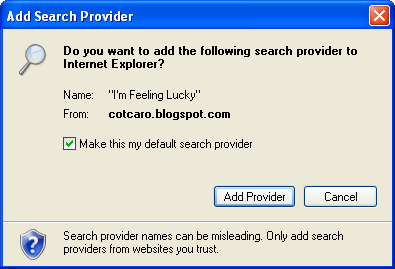
After you click on appropriate button, a small confirmation window will appear. Activate the option saying "Make this my default search provider" as depicted below to use keyword browsing facility in no time.

internet explorer add search provider window

There you go. You are ready to give a try. Just type myspace in your location bar and press enter. You will land on Myspace in a moment. Try another one. Type yahoo and press enter. In a few seconds you will get Yahoo main page on your screen.

Other example keywords you may give a try.

youtube keyword will bring you leading video sharing web site - Youtube

live keyword will bring you the Microsoft's search engine - Live Search

facebook keyword will land you on the popular social network site - Facebook

For any site that you want to reach via keyword browsing, just find a good keyword that will describe the visit site best, type in your browser's location bar and then press enter. That is all you need to know.

If you have any problem, question to ask or want to thank, don't hesitate to post as comment.

Hope it helps. Enjoy!

Related Posts:

Add Keyword Browsing to Opera

Adding just a new search engine will be enough to implementing keyword browsing on Opera. Because adding search engines automatically (like in Internet Explorer) to Opera is not possible, we will create it from scratch. But it will not take too long. In a minute everything will be fine and ready to go.

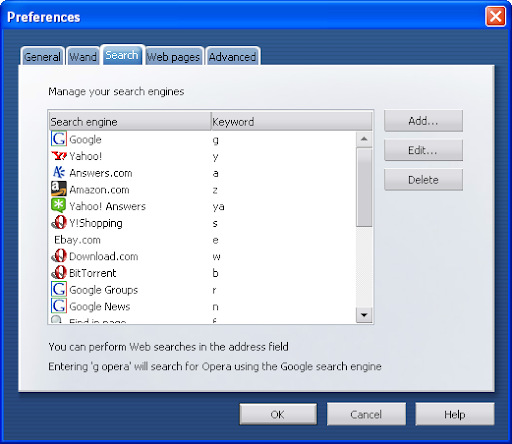
From menu bar follow Tools > Preferences path. A new panel will appear and click on Search tab, then.

Opera Search Panel

Press on Add button at the right side of the panel. A new search engine panel will appear. Fill out the form as depicted below.

Note: Below isn't an image but a form area so you can get the contents of the form area (yellow boxes) by right clicking and then copying.

After you filled out all sections, click on OK to proceed. Now close all open panels and open a new browser tab on Opera. On other browsers typing keyword and pressing enter is enough to implement I'm Feeling Lucky searches in location bar. But on Opera you should not forget to use the keyword that you defined in keyword section above.

Now lets give a try. Type go ebay into your location bar and press enter. You will land on Ebay in a moment. Try another one. Type go gmail and press enter. In a few seconds you will see Gmail main page on your screen.

Other example keywords you may give a try.

go smashing magazine will bring you a popular weblog dedicated to web-developers and designers - Smashing Magazine
go lifehacker will bring you the famous productivity blog - Lifehacker
go psdtuts will land you on a great blog that brings together photoshop talents and their great psd tutorials for photoshop users - PSDTuts

If you have any problem, question to ask or want to thank, don't hesitate to post as comment, please.

Hope it helps. Enjoy!

Related Posts:

Add Keyword Browsing to Maxthon


Maxthon doesn't provide a default keyword browsing support but you can bring the functionality onto your own Maxthon easily.

From Maxthon menu bar, follow Tools > Maxthon Setup Center path. Click on Search link on the left panel. A new frame will appear. At the end of the page below Search Engines heading, click on the Add Item link. A new form area will appear. Fill out the form as shown below.

*Note: I have created a simple form area below, that is completely identical to Maxthon Add Search form. So you can right click on the text areas, copy and paste values to your Maxthon without losing time for typing. Choosing all text will be handled automatically when clicked on text.

TitleAliasURL

Add ItemAdd Seperator

After filled out everything, click on Save. Open a new tab and type your keyword digg in location bar and press enter. Your location bar search will lead you to the site that your keyword best describe, in this case to DIGG .

Other example keywords you may give a try.

wikipedia keyword will bring you the popular open source encyclopedia - Wikipedia
flickr will bring you the best online photo management and sharing application - Flickr
blogger keyword will land you on the Google's famous blogging web service - Blogger

If you have any problem, question to ask or want to thank, don't hesitate to post as comment.

Hope it helps. Enjoy!

Related Posts: